We continue the series of articles “VMware Learning. Year 2020”.
We recently talked about new VMware training programs in the field of Data Center Virtualization & Hybrid Cloud Infrastructure – vSphere 7.
Today we will talk about new courses in the field of Virtualization & Cloud Management Platform – VMware vRealize.
VMware vRealize
VMware provides a comprehensive cloud management platform that can manage hybrid (multi-cloud) environments that run everything from traditional to containerized (cloud) workloads. The VMware vRealize family of products accelerates the provision of IT services through automation and predefined policies, providing a high level of flexibility for developers and business lines while maintaining management and control.
The main new current training programs for VMware vRealize technologies are:
Prerequisites: This course requires completion of the following course: VMware vSphere: Install, Configure, Manage.
Certification: VMware Certified Professional – Cloud Management and Automation 2019 (VCP-CMA 2019).
During this five-day course, you will focus on installing, configuring, and managing VMware vRealize Automation. You will gain an understanding on how to use vRealize Automation to automate the delivery of virtual machines, applications, and personalized IT services across different data centers and hybrid cloud environments. The course covers how to manage both on-premise systems and cloud services and how vRealize Automation Service Broker can aggregate content in native formats from multiple clouds and platforms into a common catalog. You will learn how to interface vRealize Automation with other systems using VMware vRealize Orchestrator and how to use vRealize Automation to manage Kubernetes systems and leverage other systems.
Prerequisites: Successful completion of courses VMware vSphere: Install, Configure, Manage, VMware vSphere: Optimize and Scale or equivalent knowledge.
This five-day course covers advanced capabilities like customizing alerts, views, reports, and dashboards and explains the architecture and different ways of deploying VMware vRealize operations. This course explains certificates, capacity concepts, and workload optimization with real-world use cases and covers troubleshooting using dashboards and how-to manage compliance and configurations. The course also covers management packs such as those for or in the SDDC Management Health solution, Storage Devices Management Pack, and AWS Management Pack.
Prerequisites: Students taking this course should have general networking and security knowledge. Before taking this course, students should take the following courses or have equivalent knowledge and experience: VMware NSX: Install, Configure, Manage [V6.4]; VMware vRealize Network Insight Fundamentals.
This course, equivalent to 2 days of training, gives you the skills to deploy and use VMware vRealize Network Insight™ to ensure an optimized, highly available, and secure infrastructure for your applications. You will learn the features, components, architecture, and benefits of vRealize Network Insight and how to use it to simplify daily operation and troubleshooting tasks.
Brief Summary
In this article, we are introduced to new training programs in the direction of VMware Virtualization & Cloud Management Platform – VMware vRealize .
In the next publication of the series “Vmware Learning. Year 2020” we will talk about new training programs in the field Network Virtualization & Security – NSX-T.
Follow the news, before the meeting on air traditionally for a few days. Sincerely, AIRRA
We continue the series of articles “VMware Learning. Year 2020”.
In March of this year, VMware announced a new version of vSphere 7 – the biggest innovation since the launch of ESXi – Unified management technology for Containers and VMs.
vSphere 7 is based on the following key features, including:
Providing infrastructure for developers with support for artificial intelligence;
Simplification of processes;
Full scalability;
Improving infrastructure and data security.
To help develop their skills and enable the organization to realize the latest benefits of vSphere 7, VMware has announced the release of 7 new courses.
So today we will talk about new curricula on VMware Vsphere 7.
VMware vSphere 7
VMware vSphere is server virtualization software and the heart of a Software-Defined Data Center (SDDC) that helps you run, manage, connect and secure applications in a shared cloud operating environment.
The main new current training programs for vSphere 7 technologies are:
Certification: Attending this course allows candidates who hold a valid VCP-DCV 2019 to upgrade to VCP-DCV 2020 without taking the certification exam.
In this three-day, hands-on training course, you explore the new features and enhancements in VMware vCenter Server 7 and VMware ESXi 7. Real-world use-case deployment scenarios, hands-on lab exercises, and lectures teach you the skills that you need to effectively implement and configure VMware vSphere 7. This course is recommended for customers who want to deploy vSphere 7 in their existing vSphere environment.
Prerequisites: System administration experience on Microsoft Windows or Linux operating systems.
Certification: Attending this course meets the training requirement to achieve the following certification: VMware Certified Professional – Data Center Virtualization (VCP-DCV).
This five-day course features intensive hands-on training that focuses on installing, configuring, and managing VMware vSphere 7, which includes VMware ESXi 7 and VMware vCenter Server 7. This course prepares you to administer a vSphere infrastructure for an organization of any size. This course is the foundation for most of the other VMware technologies in the software-defined data center.
Target audience: Senior Administrators, Implementers and Consultants, Architects.
Prerequisites: Understanding of concepts presented in the VMware vSphere: Install, Configure, Manage course.
Certification: Attending this course meets the training requirement to achieve the following certification: VMware Certified Professional – Data Center Virtualization (VCP-DCV).
This five-day course teaches you advanced skills for configuring and maintaining a highly available and scalable virtual infrastructure. Through a mix of lecture and hands-on labs, you configure and optimize the VMware vSphere 7 features that build a foundation for a truly scalable infrastructure, and you discuss when and where these features have the greatest effect. Attend this course to deepen your understanding of vSphere and learn how its advanced features and controls can benefit your organization..
Target audience: Senior Administrators, Implementers and Consultants, Architects.
Prerequisites: VMware vSphere: Install, Configure, Manage. Experience in working with a command-line interface is highly recommended, as is completion of VMware vSphere: Optimize and Scale.
Certification: Attending this course meets the training requirement to achieve the following certification: VMware Certified Professional – Data Center Virtualization (VCP-DCV). Attending this course is also recommended if you aim to achieve the following certification: VMware Certified Advanced Professional – Data Center Virtualization (VCAP-DCV) Deploy.
This five-day, hands-on training course provides you with the advanced knowledge, skills, and abilities to achieve competence in troubleshooting the VMware vSphere 7.x environment. This workshop increases your skill and competence in using the command-line interface, VMware vSphere Client, log files, and other tools to analyze and solve problems.
Target audience: Senior Administrators, Implementers and Consultants, Architects.
Prerequisites: System administration experience on Microsoft Windows or Linux operating systems.
Certification: Attending this course meets the training requirement to achieve the following certification: VMware Certified Professional – Data Center Virtualization (VCP-DCV).
This five-day, intensive course takes you from introductory to advanced VMware vSphere 7 management skills. Building on the installation and configuration content from our best-selling course, you will also develop advanced skills needed to manage and maintain a highly available and scalable virtual infrastructure. Through a mix of lecture and hands-on labs, you will install, configure and manage vSphere 7. You will explore the features that build a foundation for a truly scalable infrastructure and discuss when and where these features have the greatest effect. This course prepares you to administer a vSphere infrastructure for an organization of any size using vSphere 7, which includes VMware ESXi 7 and VMware vCenter Server 7.
Target audience: Implementers and Consultants, Architects.
Prerequisites: Completion of the VMware vSphere: Install, Configure, Manage and VMware vSphere: Optimize and Scale courses.
Certification: This course is recommended if you aim to achieve the following certification: VMware Certified Advanced Professional – Data Center Virtualization (VCAP-DCV) Design.
This three-day training course equips you with the knowledge, skills, and abilities to design a VMware vSphere 7 virtual infrastructure. You follow a proven approach to design a virtualization solution that ensures availability, manageability, performance, recoverability, and security, and that uses VMware best practices. This course discusses the benefits and risks of available design alternatives and provides information to support making sound design decisions. Given a case study, you practice your design skills by working with peers on a design project.
● VMware vSphere with Kubernetes: Deploy and Manage [V7]
Duration: 3 days.
Level of difficulty: Advanced.
Target audience: Implementers and Consultants, Architects.
Prerequisites: Completion of the VMware vSphere: Install, Configure, Manage and VMware vSphere: Optimize and Scale courses.
During this 3-day course, you focus on deploying and managing VMware vSphere with Kubernetes. You learn about how vSphere with Kubernetes can be used to orchestrate the delivery of Kubernetes clusters and containerized applications in a VMware vSphere environment.
Brief Summary
In this article, we are introduced to new training programs in the direction of VMware vSphere 7.
In the next publication of the cycle “VMware Learning. Year 2020” we will talk about new training programs in VMware vRealize directions.
Follow the news until the meeting is on air in a few days. Sincerely, AIRRA.
Recently in the series of articles “VMware Learning. Year 2020” we talked about the training programs for authorized learning VMware 2020 season. Today we will talk about one of the options for gaining practical skills in working with VMware technologies.
During the authorized study, students have access to the laboratory environment in which they perform tasks according to the course scenario. This is enough to gain basic technology skills. However, after the end of the course, this access is terminated, and to consolidate skills, such a laboratory must be constantly available, and training in a productive environment is a very bad idea.
There are several main options: to create a permanent laboratory or even a home one mini data center, or take advantage of a special resource from VMware – Hands-on Labs.
A series of articles about building your own lab and how it later became a home mini data center at the design and writing stage, so today we will open a series of articles “Vmware Practice. 2020” and review VMware Hands-on Labs.
What is HOL (Hands-on Labs)?
So what is a HOL (Hands-on Labs)?
VMware Hands-on Labs provide a quick and easy way to access VMware products and solutions, testing use cases and learning about the latest features with no installation required. There are no special hardware or licenses needed. VMware Hands-on Labs delivers a real, virtualized infrastructure in the cloud using VMware managed infrastructure including vCloud Foundation, vRealize Operations, VMware Learning Platform, Wavefront and more. Best of all, they are provided at no charge and you only need a modern browser to run them. All labs are created by product experts, documented and supported by the VMware Hands-on Labs team and community.
Hands-on Labs types
In general, there are three types of Hands-on Labs:
Lightning Labs;
Comprehensive Labs;
Odyssey Game Labs.
Lightning Labs – The quickest and easiest way to experience VMware products in 30-minutes or less. Lightning Labs help you experience and evaluate VMware products in small segments of time. “Bite-sized” labs allow you to learn about core product features quickly!
Comprehensive Labs – Dive deep into VMware products features and capabilities with full guided labs. Experience the full range of VMware products and learn about new features. Up and running on any browser in minutes and 100% free. No installation, licenses, or special hardware required. Relevant content available and updated year round.
Odyssey Game Labs – Test your knowledge and skills of VMware products by completing tasks. Where will you rank on the leaderboard? VMware Odyssey are short tasks that challenge your knowledge of VMware products and solutions. Go against the clock and players online to top the leaderboard! Get instant feedback on your progress. Sharpen your skills and showcase your technical expertise.
Brief Summary
So, from this short publication you learned about VMware Hands-on Labs, about the types of labs. Since this resource is absolutely free, and only a modern browser is required for access, I advise you to bookmark the address of the resource “VMware Hands-on Labs” and quickly register and read a fairly large catalog of laboratory work.
And in the next publication, we will talk about the main available laboratory work in the direction of Lightning Labs, for a quick introduction to the technologies of VMware.
Follow the news until the meeting is on air in a few days. Sincerely, AIRRA.
The series of articles “Vmware Cloud Foundation as Code…” are organized and digitized notes from the author’s paper diary. Russian hybrid military aggression and invasion prevented the timely publication of the collected and processed material. The author’s service in the army, the evacuation of his home mini-data center and blog away from the fighting, and later problems with power supply due to the destruction of infrastructure by Russian missiles – all this forced this activity to be suspended.
Russia continues its military aggression, missile strikes damage civilian infrastructure, heat and energy supply. The author, as far as possible, does not stop working on organizing articles for the blog in this extremely difficult time for all Ukrainians and is preparing new material.
The publication date of the article in the title is based on the original entries in the author’s diary.
Final revision of the material of this article: October 13, 27, and December 12, 2024.
Introduction
Hello to all readers of the blog about IT Architecture and Education.
We continue the series of articles “Vmware Cloud Foundation as Code…”.
This series of publications aims to reflect the author’s approach to working with the components of the Vmware Cloud Foundation ecosystem versions 4.x, 5.x and necessary third-party services throughout the entire lifecycle of a cloud solution using only code.
In the previous post, we looked at the initial steps of the author’s approach to the storyline “Vmware Cloud Foundation as code…”.
We optimized the first step: we displayed a visual diagram of the Conceptual Aarchitecture of a Software-Defined Data Center using the code SDDCconceptDiagramV2.ps1 and a new Powershell script module: Draw-VisioDiagram.ps1.
The goal of this step was to optimize the code to achieve transparency and ease of use.
Building on previous work, in this post from the “VMware Cloud Foundation as Code…” series, we will continue the architectural theme and now move on to the Management and Workload Domain Architecture as Code model.
Management and Workloads Domains Architecture as Code
Recall that the VMware Cloud Foundation services ecosystem is mature and quite complex. Therefore, to facilitate understanding of their interaction and the correct sequence of actions during design, implementation and operation, the vendor has prepared a set of accompanying documents: VMware Cloud Foundation Documentation 4.x (archive file name – vcf-40-doc.zip), VMware Validated Design 6.0 (archive file name – vmware-validated-design-60x.zip) and diagrams for VMware Validated Design (archive file name – vvd-diagrams -release-6.0.0.zip).
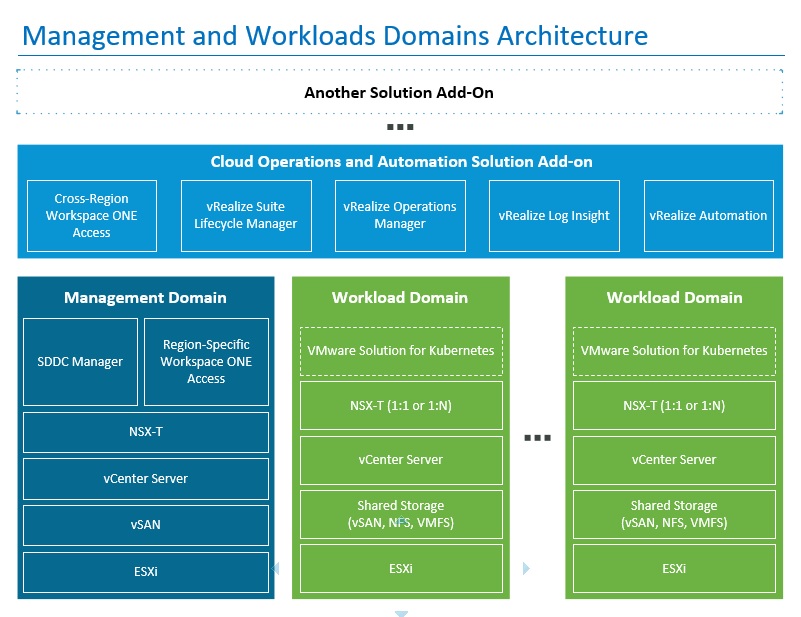
Let’s start with the next step: creating a visual diagram Management and Workloads Domains Architecture using Сode. In the above-mentioned bundles of documentation, it looks approximately like this:
Figure 1: The result of visualization of the Management and Workloads Domains Architecture using Powershell code and Microsoft Visio.
This diagram is constructed using the following PowerShell code:
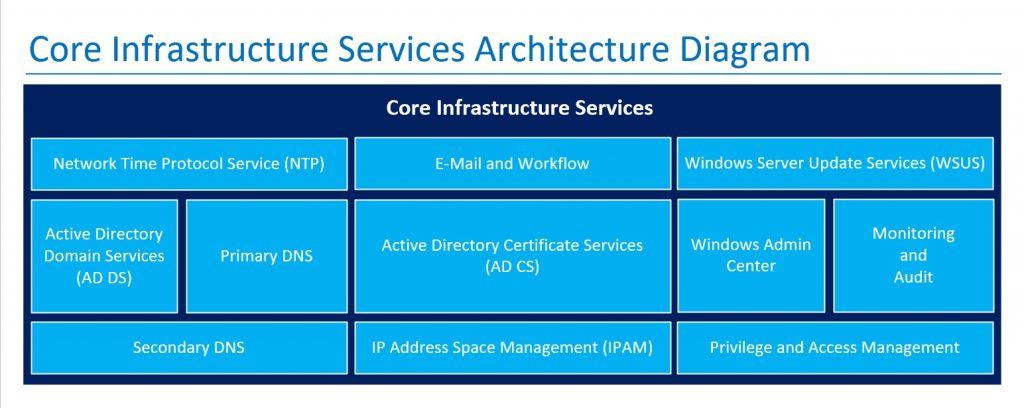
For the VMware Cloud Foundation services ecosystem to function effectively, some so-called Core Infrastructure Services will be required: Active Directory, DNS, NTP, Certificate Infrastructure, E-Mail services, etc.
These services will be deployed on the Microsoft Windows platform.
The Architecture diagram of the Core Infrastructure Services planned for integration with VMware Cloud Foundation is shown in the following figure:
Figure 2: The result of visualization of the Core Infrastructure Services Architecture using Powershell code and Microsoft Visio.
In previous articles in the series “VMware Learning. Year 2020” we reviewed the list of areas and specifics of authorized training VMware and the main curricula of Data Center Virtualization & Hybrid Cloud Infrastructure, Network Virtualization & Security and Virtualization & Cloud Management Platform.
Today we will talk about the main training programs in the field of Desktop, Application Virtualization & Mobility.
Direction of training – Desktop, Application Virtualization & Mobility includes training programs on VMware Horizon, Workspace ONE technologies:
VMware Horizon
Convert desktop and application virtualization. VMware Horizon is revolutionizing traditional virtual desktop infrastructure (VDI) with unprecedented simplicity, flexibility, speed and scalability.
Prerequisites: VMware vSphere: Install, Configure, Manage course. Attendees should also have the following Microsoft Windows system administration experience:
Configure Active Directory services, including DNS, DHCP, and time synchronization;
Restrict user activities by implementing Group Policy objects;
Configure Windows systems to enable Remote Desktop Connections;
Build an ODBC connection to an SQL Server database.
Certification: VMware Certified Professional – Desktop and Mobility 2019 (VCP-DTM 2019).
The course provides knowledge about the technologies for delivering virtual desktops and applications through a single platform of virtual desktop infrastructure. This course develops skills in installing, configuring, and managing VMware Horizon 7.x. Students will learn how to configure and deploy virtual machine pools, manage machine access and security, and provide a custom desktop environment for end users.
VMware Workspace ONE
VMware Workspace ONE is a convenient and secure enterprise platform for providing and managing any applications on any smartphone, tablet or laptop.
Certification: VMware Certified Professional – Digital Workspace 2019 (VCP-DW2019).
In this course, students will configure VMware Workspace ONE components and provide a single point of registration and authentication, as well as how to integrate industry-recognized enterprise technologies with VMware Workspace ONE. The principles of enterprise mobility, unified entry points and identity management are discussed throughout the course.
Summary
As we can see, the list of relevant training programs turned out to be quite large. It should be noted that these articles also do not mention complex programs such as Fast Track and some rare training programs at the expert level. There is also no information on new training courses that are currently in beta. I will touch on this topic in future publications.
I hope this cheat sheet will help you decide on the necessary training yourself and offer the customer the best way to learn.